Turning Old Helium Miners into Meshtastic Tower Nodes
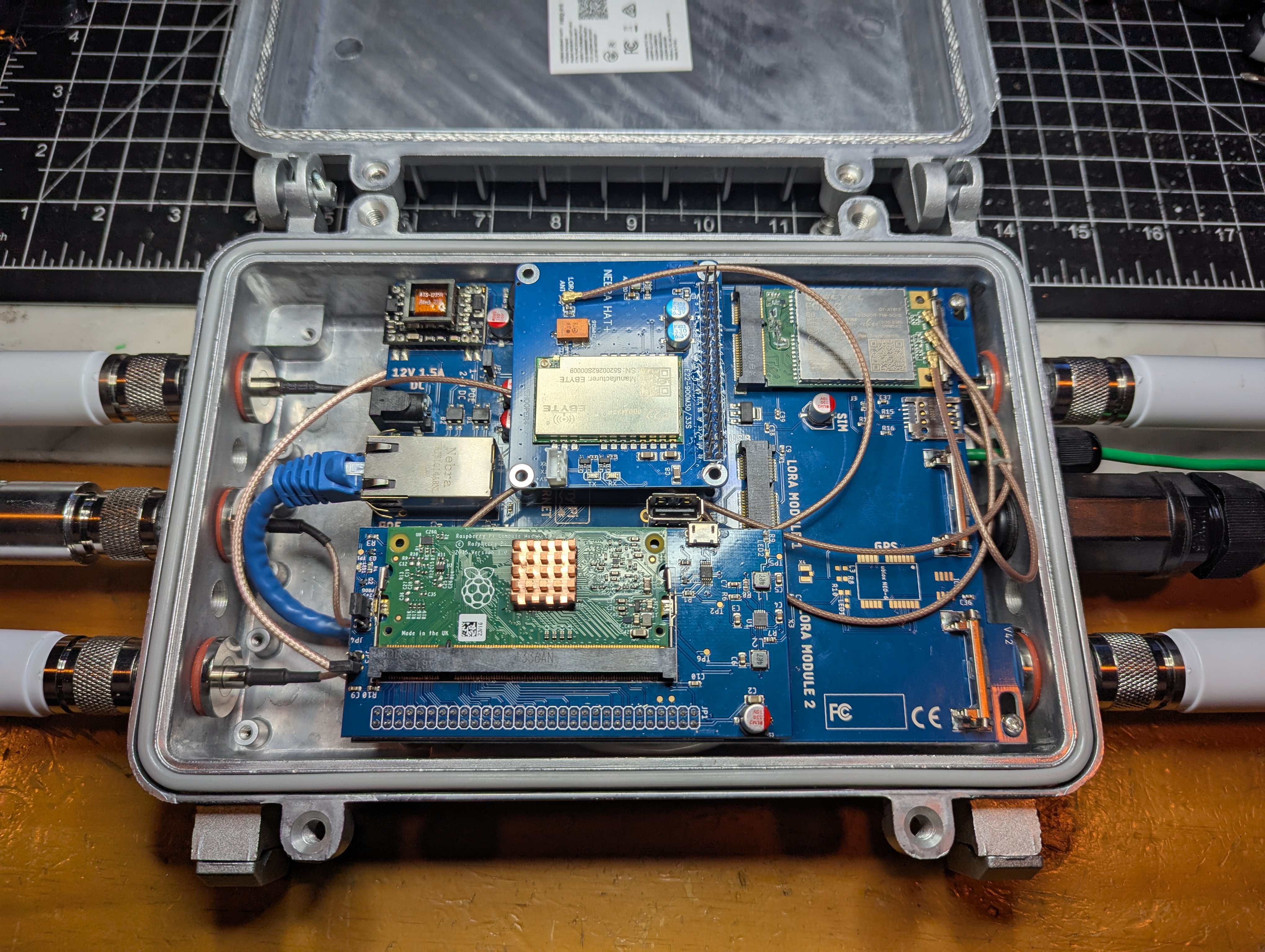
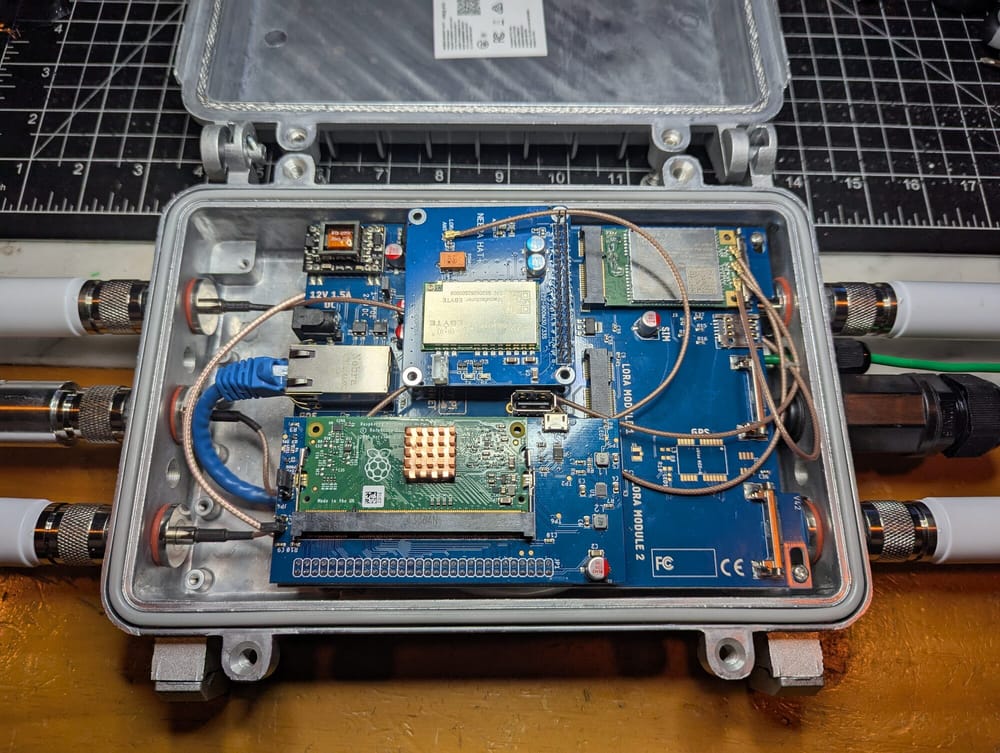
When the Helium coin spiked and crashed, it left a lot of $750+ hotspot miners with no job. Rather than becoming e-waste, they make excellent Meshtastic nodes. The most practical is the Nebra Outdoor Hotspot Miner: a sealed aluminum enclosure with N-type bulkheads, antennas and a Raspberry Pi CM3 carrier board. Used units go for about $50 on eBay. If a listing is higher, offer around that. Casper has ordered other outdoor miners to test, but so far the Nebra is king of the hill.
This guide covers the full build, from teardown and OS install through GPS, LTE and a second radio, to grounding the node and mounting it on a tower.
The hardware
Each kit includes a 915 MHz 3 dBi antenna, a 2.4 GHz antenna, the enclosure with mounting hardware, and a Pi CM3 carrier board with USB WiFi and Bluetooth. Cost, power and heat probably dictated the CM3 over a CM4. Waveshare makes a CM4-to-CM3 adapter if you need more horsepower, but the Nebra is already tight on power. It runs on 12 VDC or PoE and is rated for 12–15 W, which is too much for USB and not ideal for solar. Measured draw is lower (see Power and parts).
The enclosure is a Ningbo Darer DAM005C, rated IP65/IP67, about $15–20 plus shipping (drawing). Mountain Mesh in Georgia sells accessories: Nebra Pi hats for 40-pin Pis, the MeshToad USB radio, and a prototype PCIe card. Their Discord has details.
Helium Repurposed is a community wiki on reusing abandoned Helium miners for Meshtastic and MeshCore. It has device pages for the Nebra Indoor, Indoor ROCK PI and Outdoor miners and the Bobcat Miner 300, and it is collecting vendor PDFs while they still exist, since several Helium hardware makers have gone bankrupt.
Teardown
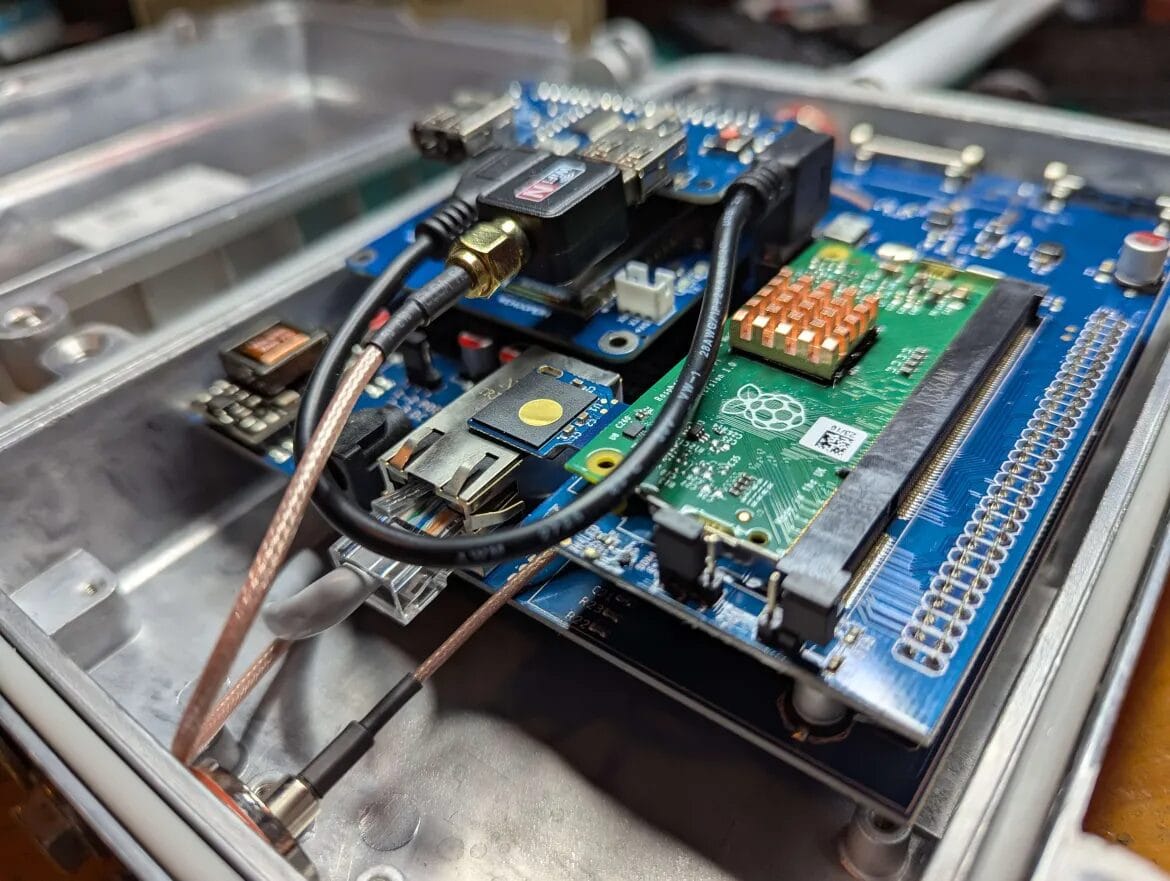
- Remove the USB board if you don't need it. The Bluetooth adapter has short range, no external antenna support, and was probably only meant for initial setup.
- Keep WiFi on the single USB port for now. The stock dongle has poor Linux drivers, so plan to replace it (see Network access).
- Check bulkhead thickness for board clearance.
- The mounting posts take M3 pan head screws. Add M3 washers for grounding.
- Attach a NebraHat or another Meshtastic radio to the 40-pin header.
Flashing the OS
The Pi boots from an eMMC module: a small key with a gold dot next to the Pi board. eMMC lasts much longer than MicroSD and handles a wider temperature range, so use MicroSD only for testing or in a temperature-controlled space.
Option 1: MicroSD adapter. The eMMC key fits a MicroSD slot, but adapters vary. SanDisk SD adapters don't work. The UGREEN USB MicroSD reader works reliably.
- Put the eMMC key in the adapter and open Raspberry Pi Imager.
- Choose Raspberry Pi 3 (the Nebra uses a Compute Module 3), Raspberry Pi OS Lite (64-bit) for fewer running services, and the 32 GB device.
- When Imager offers custom settings, set the hostname, WiFi, user account and SSH. Skip this and you can't log in.
- Reinstall the key, power up and SSH in. Find the node in your router's DHCP leases or with a port scan.
Option 2: USB boot through the Nebra board. Casper is still confirming this one. It is much slower but seems more reliable. Of the two jumper headers next to the CM3, the 2-pin selects programming or operating mode and the 3-pin appears to control flashing or writing to the eMMC.
- Take the Pi board out of the Nebra and unplug the Micro-USB cable.
- Install Raspberry Pi USB Boot first.
- Leave the 3-pin jumper alone if it is already on pins 2 and 3. Jumper the 2-pin header.
- Connect the board to your PC by USB, run
rpi-boot-CM-CM2-CM3, then run Raspberry Pi Imager as above. - Remove the 2-pin jumper. The board won't boot with it in place. Reinstall it in the Nebra and leave the 3-pin jumper alone.
Installing meshtasticd
Update the system, add the Meshtastic repository, and install meshtasticd and the CLI:
Install meshtasticd and the CLI
sudo apt update -y
sudo DEBIAN_FRONTEND=noninteractive apt-get -y \
  -o Dpkg::Options::="--force-confdef" \
  -o Dpkg::Options::="--force-confold" \
  dist-upgrade

echo 'deb http://download.opensuse.org/repositories/network:/Meshtastic:/beta/Debian_13/ /' \
  | sudo tee /etc/apt/sources.list.d/network:Meshtastic:beta.list
curl -fsSL https://download.opensuse.org/repositories/network:Meshtastic:beta/Debian_13/Release.key \
  | gpg --dearmor | sudo tee /etc/apt/trusted.gpg.d/network_Meshtastic_beta.gpg > /dev/null

sudo apt update -y
sudo apt install -y meshtasticd i2c-tools pipx
pipx install "meshtastic[cli]"
pipx ensurepath
Enable SPI in /boot/firmware/config.txt. The I2C line is optional and only needed for sensors. On a ZebraHat, enable I2C with sudo raspi-config instead. Reboot afterwards.
Lines for config.txt
dtparam=spi=on
dtoverlay=spi0-0cs
dtparam=i2c_arm=on
Auto-discovery and hat config
An mDNS record lets the Meshtastic app find the node. Then download the config for your hat from wehooper4's hardware repo. This example uses the 2 W NebraHat:
mDNS service and hat config
sudo apt install -y avahi-daemon
sudo tee /etc/avahi/services/meshtastic.service > /dev/null <<'EOF'
<?xml version="1.0" standalone="no"?><!--*-nxml-*-->
<!DOCTYPE service-group SYSTEM "avahi-service.dtd">
<service-group>
    <name>Meshtastic</name>
    <service protocol="ipv4">
        <type>_meshtastic._tcp</type>
        <port>4403</port>
    </service>
</service-group>
EOF
sudo systemctl enable --now avahi-daemon
sudo hostnamectl set-hostname MYCALL-Node01
sudo systemctl restart avahi-daemon

sudo wget -O /etc/meshtasticd/config.d/NebraHat_2W.yaml \
  https://github.com/wehooper4/meshtastic-Hardware/raw/refs/heads/main/NebraHat/NebraHat_2W.yaml
sudo nano /etc/meshtasticd/config.d/NebraHat_2W.yaml
# Other hats:
#   NebraHat 1W:       .../NebraHat/NebraHat_1W.yaml
#   NebraHat Duo E22P: .../NebraHat/Duo/NebraHat_Duo_E22P.yaml
# ZebraHat: .../ZebraHAT/ZebraHat.yamlConfigure and start
In /etc/meshtasticd/config.yaml, set MACAddressSource: eth0 and a node limit of 200–400. If the log shows "No sx1262 radio", try uncommenting the CS line. Then start the daemon and set the region and owner:
Start meshtasticd and set the region and owner
sudo systemctl enable --now meshtasticd

meshtastic --host --set lora.region US
meshtastic --host --set-owner "My Mesh - Town - Tower"
meshtastic --host --set-owner-short "MESH"
meshtastic --host --export-config | grep "Key:"   # save these keys somewhere safe
If it doesn't start, check journalctl -xeu meshtasticd.service or run meshtasticd in the foreground. From here you can manage the node in the Meshtastic app with the Network option on the Cloud tab.
GPS and sensors
For I2C sensors, uncomment the I2C lines in both /boot/firmware/config.txt and /etc/meshtasticd/config.yaml, then check for devices with i2cdetect -y 1.
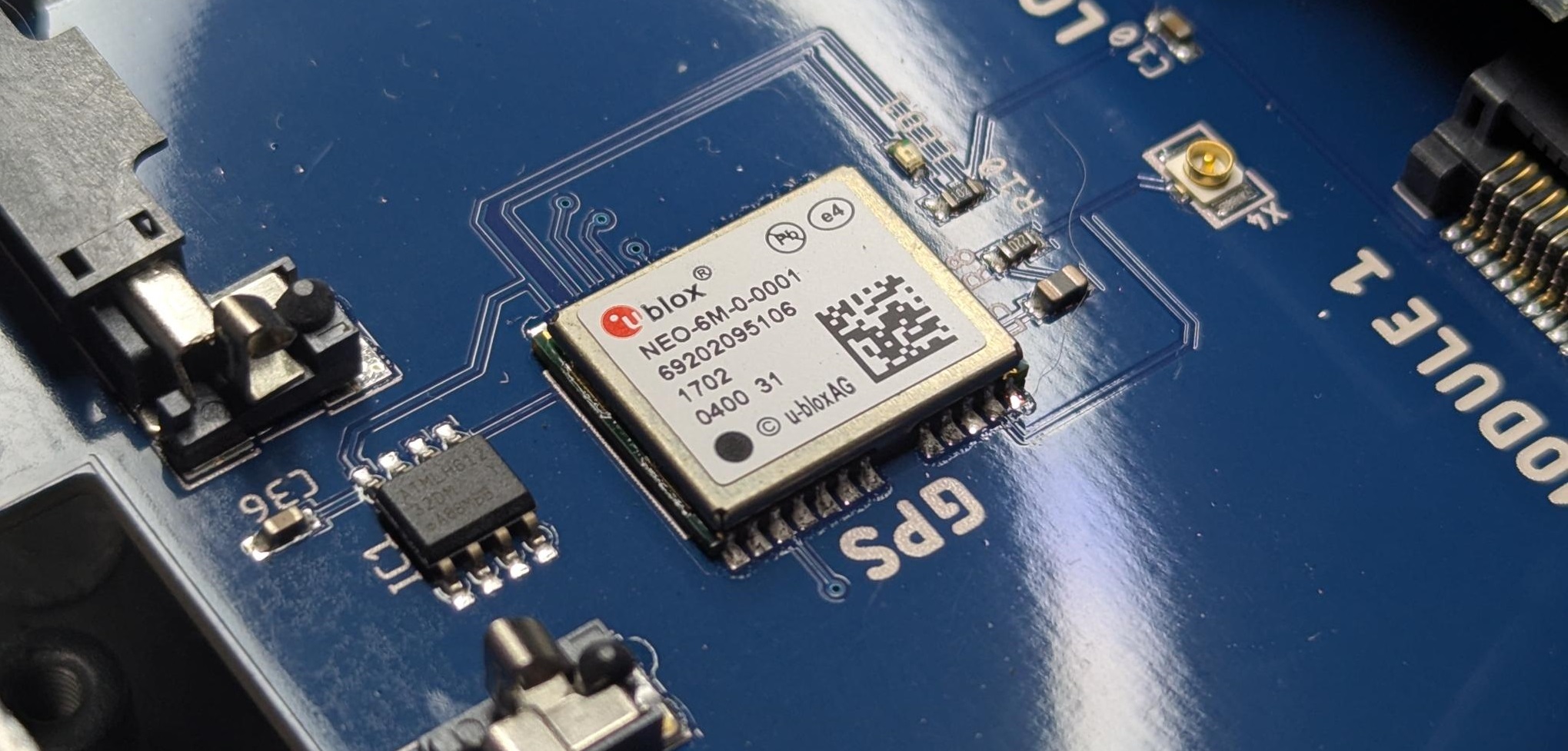
Some miners include a NEO-6M GPS chip. If yours doesn't, you can add the surface-mount parts, but a USB GPS or the LTE modem is usually easier. According to the Nebra board's developer, the hat header's pin allocation leaves UART0 free on GPIO 14/15. To enable the onboard GPS:
Enable the onboard NEO-6M GPS
sudo apt install -y gpsd gpsd-clients chrony socat

# Append to /boot/firmware/config.txt:
#   enable_uart=1
#   dtoverlay=uart1,txd1_pin=32,rxd1_pin=33,pin_func=7
sudo nano /boot/firmware/config.txt
sudo raspi-config nonint do_serial_hw 0     # enable the serial port
sudo raspi-config nonint do_serial_cons 1   # disable the serial console

# /etc/default/gpsd:      DEVICES="/dev/serial1"
# /etc/chrony/chrony.conf: refclock SHM 0 refid GPS precision 1e-1 offset 0.0 delay 0.2
sudo nano /etc/default/gpsd
sudo nano /etc/chrony/chrony.conf
sudo systemctl restart chrony
sudo reboot
Add /dev/serial1 to the GPS: section of config.yaml. After the reboot, cgps -s shows satellites, and once locked, chronyc sources -v should list GPS as a time source.
LTE modem and GPS
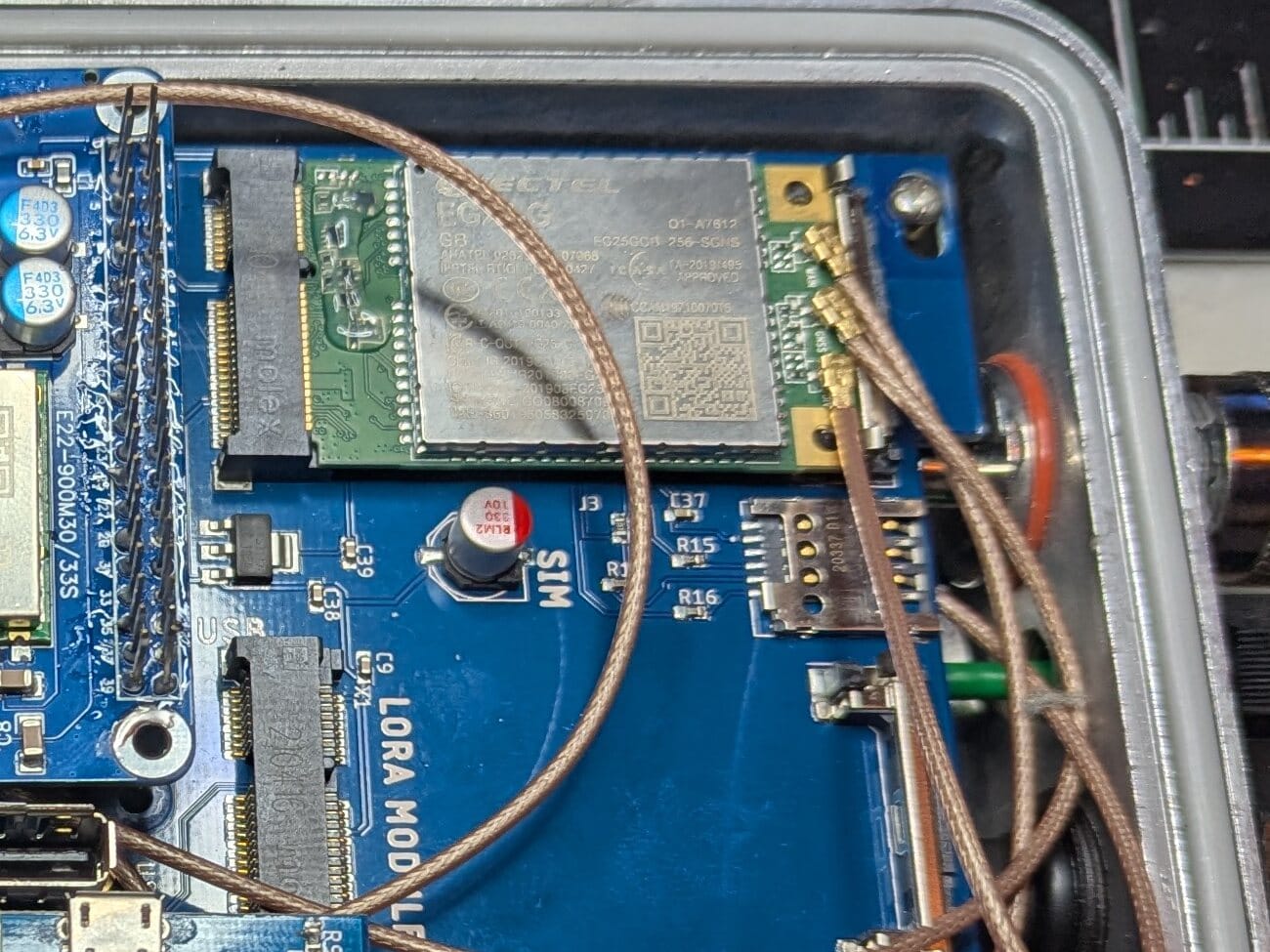
The Nebra manuals list an optional cell modem. Its original MSRP was very high, but it now sells on eBay for about $20 as the "Quectel EG25-G Mini PCIe 4G Mobile Broadband Card w/ Antennas". The kit includes the card, two LTE antennas and two IPEX-to-N bulkhead cables. A CAD model is available. Voice calling opens up some interesting possibilities.
| Quectel EG25-G | |
|---|---|
| Networks | LTE, UMTS/HSPA+, GSM/GPRS/EDGE |
| Data | 150 Mbps down, 50 Mbps up (MIMO) |
| GNSS | Qualcomm IZat Gen8C Lite: GPS, GLONASS, BeiDou, Galileo, QZSS |
| SMS and voice | SMS (MT, MO, CB, text and PDU) and voice calls |
| Connectors | 3× IPEX-1: LTE main, LTE diversity, GNSS |
| LTE-FDD bands | B1, B2, B3, B4, B5, B7, B8, B12, B13, B18, B19, B20, B25, B26, B28 |
| LTE-TDD bands | B38, B39, B40, B41 |
| WCDMA bands | B1, B2, B4, B5, B6, B8, B19 |
| GSM | 850, 900, 1800, 1900 MHz |
Install the card
- Insert a SIM. GPS needs one to work reliably, though it probably doesn't need active service. eSIM is possible but complicated.
- Remove the metal clip closest to the edge of the system board.
- Slide the card into the connector at 30–45 degrees and press it flat. Two spring clips hold it.
- Connect the MAIN and GNSS bulkheads and antennas. Leave DIV empty to avoid interfering with the LoRa radio.
Put MAIN on the opposite side of the enclosure from the 915 MHz antenna. GNSS is receive-only, so it can sit next to the Meshtastic antenna. GPS works fine on the included LTE antenna: Casper gets 10–12 satellites indoors. For very accurate time, use an active GPS antenna.
Bring up the modem and GPS
Bring up the modem and enable GPS
sudo apt update
sudo apt install -y network-manager modemmanager gpsd gpsd-clients chrony socat
sudo systemctl enable --now NetworkManager ModemManager

nmcli device
mmcli -L        # look for .../Modem/0 [QUECTEL INCORPORATED] EG25; if it's Modem/1, use -m 1
sudo mmcli -m 0 --enable

# Registers without data. For data, add: gsm.apn <your_carrier_apn>
sudo nmcli connection add type gsm ifname "*" con-name mycell
sudo nmcli connection up mycell
sudo nmcli connection modify mycell connection.autoconnect yes

mmcli -m 0      # ports: cdc-wdm0 (qmi), ttyUSB0 (qcdm), ttyUSB1 (gps), ttyUSB2 (at), ...
sudo mmcli -m 0 --location-enable-gps-unmanaged
sudo mmcli -m 0 --location-set-enable-signal
sudo mmcli -m 0 --location-get
mmcli -m 0 --location-status

# Point gpsd at the (gps) port from above
sudo tee /etc/default/gpsd > /dev/null <<'EOF'
START_DAEMON="true"
GPSD_OPTIONS="-n"
DEVICES="/dev/ttyUSB1"
USBAUTO="false"
EOF
sudo systemctl enable --now gpsdFeed GPS to meshtasticd
meshtasticd only reads GPS from a serial path. Casper used a socat PTY pair rather than a FIFO so the feed behaves like a real TTY. One service creates the pair and another pipes NMEA from gpsd into it:
PTY bridge services and checks
sudo tee /etc/systemd/system/meshtastic-pty.service > /dev/null <<'EOF'
[Unit]
Description=Meshtastic virtual PTY pair for GPS (socat)
After=network.target

[Service]
Type=simple
RuntimeDirectory=meshtastic
ExecStart=/usr/bin/env socat -d -d pty,raw,echo=0,link=/run/meshtastic/gps_in,mode=666 pty,raw,echo=0,link=/run/meshtastic/gps_feed,mode=666
Restart=always
RestartSec=2

[Install]
WantedBy=multi-user.target
EOF

sudo tee /etc/systemd/system/meshtastic-gpspipe.service > /dev/null <<'EOF'
[Unit]
Description=Feed NMEA from gpsd into Meshtastic PTY
Requires=meshtastic-pty.service gpsd.service
After=meshtastic-pty.service gpsd.service

[Service]
Type=simple
ExecStart=/bin/sh -lc 'while [ ! -c /run/meshtastic/gps_feed ]; do sleep 0.5; done; exec /usr/bin/env gpspipe -r > /run/meshtastic/gps_feed'
Restart=always
RestartSec=2

[Install]
WantedBy=multi-user.target
EOF

sudo systemctl daemon-reload
sudo systemctl enable --now meshtastic-pty.service meshtastic-gpspipe.service
systemctl --no-pager status meshtastic-pty meshtastic-gpspipe

ls -l /run/meshtastic                        # gps_feed and gps_in should exist
sudo timeout 3 cat /run/meshtastic/gps_in    # should print NMEA sentences
journalctl -u meshtastic-pty -b --no-pager   # should show no errors
Set the GPS path in /etc/meshtasticd/config.yaml (YAML is strict about indentation) and restart with sudo systemctl restart meshtasticd:
GPS section of config.yaml
GPS:
  SerialPath: /run/meshtastic/gps_in
To use GPS for system time, add refclock SHM 0 offset 0.0 delay 0.0 refid GPS poll 4 to /etc/chrony/chrony.conf (adjust offset or delay as needed). Run sudo systemctl restart chrony gpsd, then confirm with cgps -s (constantly updating numbers) and chronyc sources -v (GPS listed as a source).
Keep the modem's GPS turned on
This watchdog re-enables gps-unmanaged and location signals on every modem ModemManager sees. It needs flock from util-linux, and Casper considers it a work in progress. Save it as /usr/local/bin/check_mm_location.sh, then install it hourly:
check_mm_location.sh
#!/bin/bash
# Ensure ModemManager location features are on for all detected modems.
# Requires: mmcli, flock. Run as root (cron/systemd).

set -euo pipefail

LOG_FILE="/var/log/mm-location-monitor.log"
MMCLI="${MMCLI:-/usr/bin/mmcli}"
DATE="/bin/date"
FLOCK="/usr/bin/flock"
LOCKFILE="/var/lock/mm-location-monitor.lock"

log() {
  echo "$($DATE '+%Y-%m-%d %H:%M:%S')  $*" | tee -a "$LOG_FILE"
}

list_modem_ids() {
  # Output: one modem ID per line (e.g., 0, 1, 2 ...), or nothing if none exist
  # mmcli -L example line:
  # /org/freedesktop/ModemManager1/Modem/1 [QUALCOMM INCORPORATED] QUECTEL Mobile Broadband Module
  "$MMCLI" -L 2>/dev/null | sed -En 's#.*/Modem/([0-9]+).*#\1#p'
}

check_and_fix_modem() {
  local MID="$1"

  # Verify the modem exists
  if ! "$MMCLI" -m "$MID" >/dev/null 2>&1; then
    log "modem $MID: not present; skipping"
    return 0
  fi

  # Read location status
  local STATUS
  if ! STATUS="$("$MMCLI" -m "$MID" --location-status 2>&1)"; then
    log "modem $MID: failed to read location-status"
    return 1
  fi

  # Quick capability check; if modem doesn't support gps-unmanaged, don't spam errors
  local CAP_LINE
  CAP_LINE="$(echo "$STATUS" | grep -E '^\s*\|\s*capabilities:' || true)"
  if ! echo "$CAP_LINE" | grep -q 'gps-unmanaged'; then
    log "modem $MID: no gps-unmanaged capability; skipping gps enable"
  fi

  # Parse "enabled" and "signals"
  local ENABLED_LINE SIGNALS_LINE
  ENABLED_LINE="$(echo "$STATUS"  | grep -E '^\s*\|\s*enabled:'  || true)"
  SIGNALS_LINE="$(echo "$STATUS"  | grep -E '^\s*\|\s*signals:'  || true)"

  local HAS_GPS_UNMANAGED="no" HAS_SIGNALS="no"
  if echo "$ENABLED_LINE" | grep -q 'gps-unmanaged'; then HAS_GPS_UNMANAGED="yes"; fi
  if echo "$SIGNALS_LINE" | grep -q 'yes'; then HAS_SIGNALS="yes"; fi

  local changed="no"

  # Enable gps-unmanaged if missing and supported
  if [ "$HAS_GPS_UNMANAGED" != "yes" ] && echo "$CAP_LINE" | grep -q 'gps-unmanaged'; then
    if "$MMCLI" -m "$MID" --location-enable-gps-unmanaged >/dev/null 2>&1; then
      log "modem $MID: enabled gps-unmanaged"
      changed="yes"
    else
      log "modem $MID: FAILED to enable gps-unmanaged"
    fi
  fi

  # Enable signals if missing (try both flags for compatibility)
  if [ "$HAS_SIGNALS" != "yes" ]; then
    if "$MMCLI" -m "$MID" --location-enable-signals >/dev/null 2>&1; then
      log "modem $MID: enabled signals"
      changed="yes"
    elif "$MMCLI" -m "$MID" --location-set-enable-signal >/dev/null 2>&1; then
      log "modem $MID: enabled signals (compat flag)"
      changed="yes"
    else
      log "modem $MID: FAILED to enable signals"
    fi
  fi

  # Dump refreshed status if anything changed
  if [ "$changed" = "yes" ]; then
    "$MMCLI" -m "$MID" --location-status | sed 's/^/modem '"$MID"': /' | tee -a "$LOG_FILE" >/dev/null
  else
    log "modem $MID: already OK (gps-unmanaged + signals)"
  fi
}

_main_run() {
  local any=0
  while IFS= read -r MID; do
    any=1
    check_and_fix_modem "$MID"
  done < <(list_modem_ids)

  if [ "$any" -eq 0 ]; then
    log "no modems detected by ModemManager"
  fi
}

main() {
  # Serialize concurrent runs; exits quietly if another run holds the lock
  exec "$FLOCK" -n "$LOCKFILE" "$0" _run
}

if [ "${1:-}" = "_run" ]; then
  _main_run
else
  main
fi
Install the watchdog in cron
sudo chmod 755 /usr/local/bin/check_mm_location.sh
sudo touch /var/log/mm-location-monitor.log
sudo chown root:adm /var/log/mm-location-monitor.log
sudo crontab -e
# 0 * * * * /usr/local/bin/check_mm_location.sh
Cheap LTE service
Embedded Works (also sold as IoTDataWorks) sells an unlimited 64 kbps SIM for about $55 on Amazon. It is T-Mobile only (operator ID 310260) and uses the APN m2mglobal. Casper was told it wouldn't work with the Nebra modem, but it did. These steps haven't been re-tested on a fresh install. It can take a minute or two to connect, so reboot a couple of times to make sure it comes back every time.
Set up the Embedded Works SIM
sudo systemctl enable --now ModemManager NetworkManager
sudo mmcli -m any --enable
sudo nmcli connection add type gsm ifname "*" con-name LTE \
    apn m2mglobal connection.autoconnect yes ipv4.method auto
sudo nmcli connection modify LTE gsm.network-id 310260
sudo reboot
# a couple of minutes later:
ip route show
ip addr show wwan0
The EG25-G also partly supports PPS. The system board runs a trace to both PCIe connectors, and a jumper from the pad to a GPIO pin would bring timing error down to a few milliseconds (not nanoseconds). Waveshare publishes an install script and dial-up tool for this modem, which Casper hasn't tried yet.
Network access
Buy a WiFi dongle with native Linux support and AP mode. The included one has driver issues. To add a network by hand:
Add a WiFi network
sudo nmcli connection add type wifi ifname wlan0 con-name mywifi ssid "SSID_NAME"
sudo nmcli connection modify mywifi wifi-sec.key-mgmt wpa-psk
sudo nmcli connection modify mywifi wifi-sec.psk "YOUR_PASSWORD"
sudo nmcli connection modify mywifi connection.autoconnect yes
To run the node as a WiFi access point with DHCP and NAT, use the script below. Set UPLINK_IF to wwan0 to share the LTE connection. Save it as setup-ap.sh and run sudo bash ./setup-ap.sh.
setup-ap.sh
#!/bin/bash
# Simple AP setup script for Debian
# Run as root

### CONFIGURATION ###
AP_SSID="MyAccessPoint"
AP_PASSWORD="SuperSecret123"
WLAN_IF="wlan0"
AP_IP="192.168.50.1"
DHCP_RANGE_START="192.168.50.10"
DHCP_RANGE_END="192.168.50.200"
UPLINK_IF="eth0"   # or wwan0 if you want to NAT to LTE
####################

set -e

echo "[*] Installing required packages..."
apt -o Acquire::ForceIPv4=true update
apt -o Acquire::ForceIPv4=true install -y hostapd dnsmasq iptables-persistent ifupdown

echo "[*] Stopping services until configured..."
systemctl stop hostapd || true
systemctl stop dnsmasq || true

echo "[*] Configuring static IP on $WLAN_IF..."
cat >/etc/network/interfaces.d/$WLAN_IF <<EOF
auto $WLAN_IF
iface $WLAN_IF inet static
    address $AP_IP
    netmask 255.255.255.0
EOF
ifdown $WLAN_IF || true
ifup $WLAN_IF

echo "[*] Configuring dnsmasq..."
mv /etc/dnsmasq.conf /etc/dnsmasq.conf.orig.$(date +%s) || true
cat >/etc/dnsmasq.conf <<EOF
interface=$WLAN_IF
dhcp-range=$DHCP_RANGE_START,$DHCP_RANGE_END,255.255.255.0,24h
EOF

echo "[*] Configuring hostapd..."
cat >/etc/hostapd/hostapd.conf <<EOF
interface=$WLAN_IF
driver=nl80211
ssid=$AP_SSID
hw_mode=g
channel=6
wmm_enabled=1
auth_algs=1
ignore_broadcast_ssid=0
wpa=2
wpa_passphrase=$AP_PASSWORD
wpa_key_mgmt=WPA-PSK
rsn_pairwise=CCMP
EOF

# Point hostapd to config
sed -i "s|^#DAEMON_CONF=.*|DAEMON_CONF=\"/etc/hostapd/hostapd.conf\"|" /etc/default/hostapd

echo "[*] Enabling IP forwarding..."
sed -i 's/^#\?net.ipv4.ip_forward.*/net.ipv4.ip_forward=1/' /etc/sysctl.conf
sysctl -p

echo "[*] Setting up NAT to $UPLINK_IF..."
iptables -t nat -A POSTROUTING -o $UPLINK_IF -j MASQUERADE
iptables -A FORWARD -i $UPLINK_IF -o $WLAN_IF -m state --state RELATED,ESTABLISHED -j ACCEPT
iptables -A FORWARD -i $WLAN_IF -o $UPLINK_IF -j ACCEPT
netfilter-persistent save

echo "[*] Enabling services..."
systemctl unmask hostapd
systemctl enable hostapd
systemctl enable dnsmasq
systemctl restart hostapd
systemctl restart dnsmasq

echo "[+] Access Point setup complete!"
echo "    SSID: $AP_SSID"
echo "    Password: $AP_PASSWORD"
echo "    Interface: $WLAN_IF ($AP_IP)"
For remote access, install Tailscale and open the URL it prints to add the node to your tailnet. With Tailscale on your phone, the Meshtastic app can reach the node from anywhere.
Install Tailscale
curl -fsSL https://tailscale.com/install.sh | sh
sudo tailscale up
Keeping it running
This restarts meshtasticd if it stops and reboots the node weekly. If you're new to Linux, also log in now and then to run updates, or automate them.
meshtasticd watchdog and weekly reboot
sudo tee /usr/local/bin/check_meshtasticd.sh > /dev/null <<'EOF'
#!/bin/bash
SERVICE="meshtasticd"
if ! pgrep -x "$SERVICE" > /dev/null; then
    echo "$(date): $SERVICE not running, restarting..." >> /var/log/meshtasticd_monitor.log
    systemctl restart $SERVICE
fi
EOF
sudo chmod +x /usr/local/bin/check_meshtasticd.sh
sudo crontab -e
# 0 * * * * /usr/local/bin/check_meshtasticd.sh
# 0 1 * * 1 /sbin/reboot
Adding an SDR
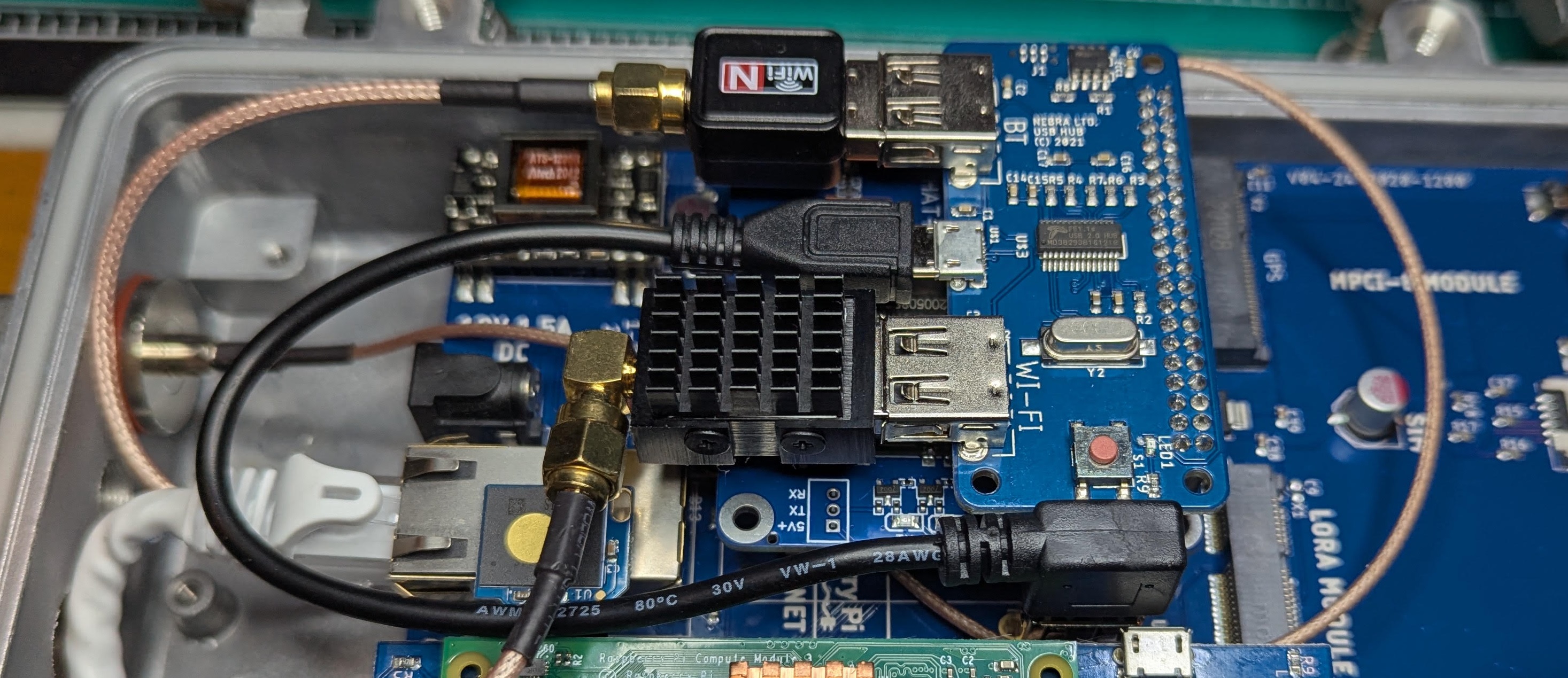
Casper put a NooElec NESDR Nano 3 in several nodes to see what is happening on the spectrum in difficult RF environments. Running meshtasticd and SDR software together may push the CM3 hard, so this is still being evaluated.
Set up the SDR
sudo apt update
sudo apt install -y rtl-sdr rtl-433 soapyremote-server
lsusb | grep RTL2838   # ID 0bda:2838 Realtek Semiconductor Corp. RTL2838 DVB-T

sudo tee /etc/udev/rules.d/20-rtl-sdr.rules > /dev/null <<'EOF'
# NooElec NESDR / RTL2832U SDR dongles
SUBSYSTEM=="usb", ATTRS{idVendor}=="0bda", ATTRS{idProduct}=="2838", MODE="0666", GROUP="plugdev"
EOF
sudo udevadm control --reload-rules
sudo udevadm trigger
sudo usermod -aG plugdev $USER

rtl_test -t                                           # test the SDR
rtl_sdr -s 2048000 -f 100e6 -n 2048000 /tmp/fm.iq     # test capture
rtl_tcp -a 0.0.0.0 -p 1234                            # serve it (or: soapyremote-server)

# Optional: blacklist the DVB-T drivers so SDR tools can claim the dongle directly
echo "blacklist dvb_usb_rtl28xxu
blacklist rtl2832
blacklist rtl2830" | sudo tee /etc/modprobe.d/blacklist-rtlsdr.conf
sudo update-initramfs -u
sudo reboot
lsmod | grep rtl     # should not list dvb_usb_rtl28xxu, rtl2832 or rtl2830
Running two radios in one node
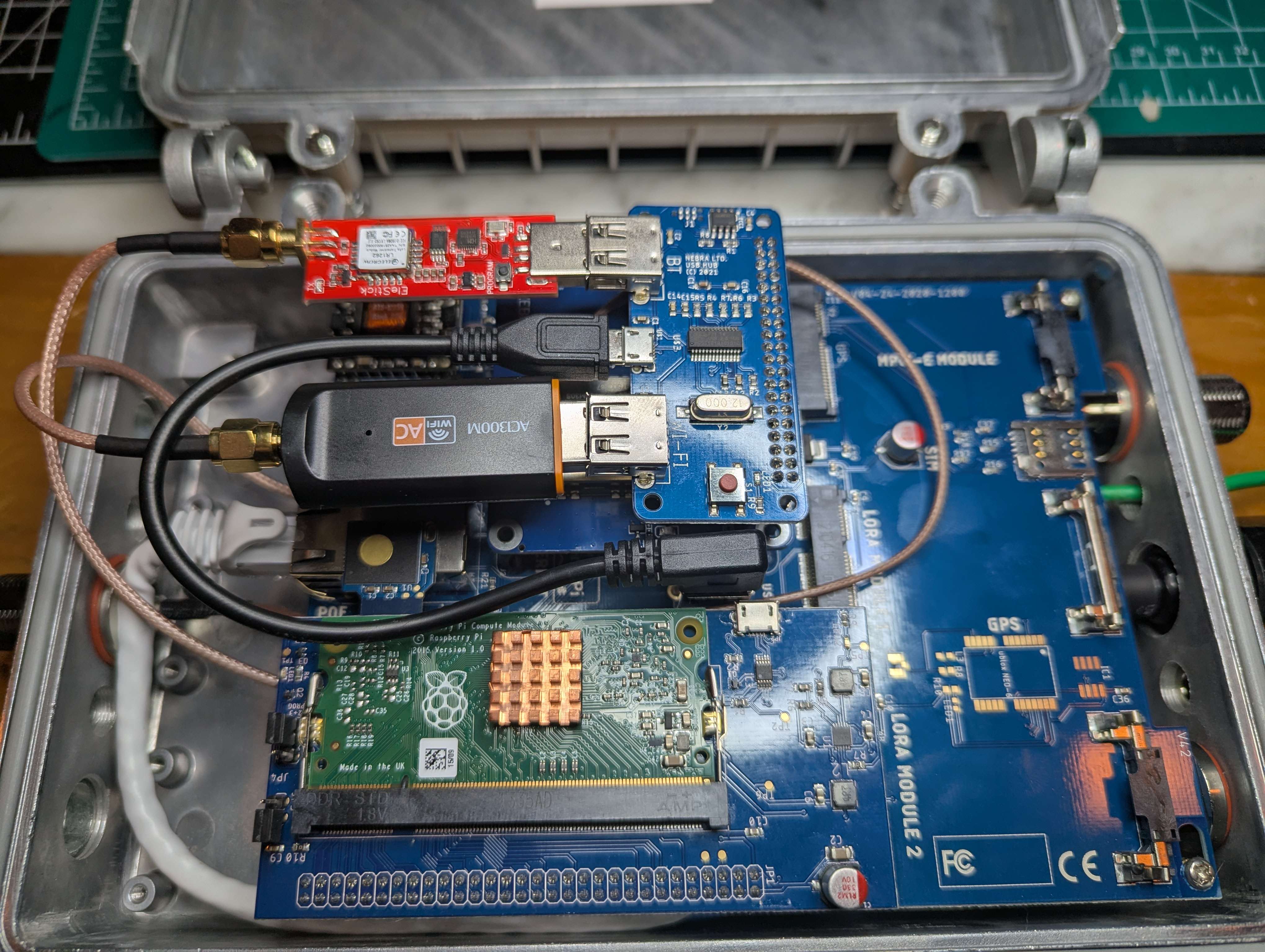
One Nebra can run two meshtasticd instances, each with its own radio and antenna, so a single node can act as a retransmit site. Casper's build pairs a wehooper4 ZebraHat with a prototype USB radio that meshtasticd picks up by default. Adjust both for your hardware. The approach is based on platfrastructure's multi-instance guide.
Run the script as root after the base install. It masks the stock meshtasticd.service, creates /etc/meshtasticd/zebra and /etc/meshtasticd/usb (each works like the base config folder), gives each instance its own data directory and random MAC, and starts meshtasticd-zebra on port 4403 and meshtasticd-usb on 4404. You shouldn't need to edit the generated units, but they're at /etc/systemd/system/meshtasticd*.
meshtasticd-multi.sh
#!/usr/bin/env bash
set -euo pipefail

# --- Instances ---
ZEBRA_NAME="zebra"
USB_NAME="usb"

ZEBRA_PORT="4403"
USB_PORT="4404"

BASE_CFG="/etc/meshtasticd/config.yaml"

ZEBRA_DIR="/etc/meshtasticd/${ZEBRA_NAME}"
USB_DIR="/etc/meshtasticd/${USB_NAME}"

ZEBRA_CFG="${ZEBRA_DIR}/config.yaml"
USB_CFG="${USB_DIR}/config.yaml"

ZEBRA_CFGD="${ZEBRA_DIR}/config.d"
USB_CFGD="${USB_DIR}/config.d"

ZEBRA_YAML="${ZEBRA_CFGD}/ZebraHat.yaml"
ZEBRA_YAML_URL="https://raw.githubusercontent.com/wehooper4/Meshtastic-Hardware/refs/heads/main/ZebraHAT/ZebraHat.yaml"

ZEBRA_FSDIR="/var/lib/meshtasticd-${ZEBRA_NAME}"
USB_FSDIR="/var/lib/meshtasticd-${USB_NAME}"

ZEBRA_UNIT="/etc/systemd/system/meshtasticd-${ZEBRA_NAME}.service"
USB_UNIT="/etc/systemd/system/meshtasticd-${USB_NAME}.service"

MESHTASTICD_BIN="/usr/bin/meshtasticd"

# --- Helper: generate random MAC like AA:BB:CC:DD:EE:FF (random last 3 bytes) ---
rand_mac() {
  local r
  r="$(openssl rand -hex 3)"              # 6 hex chars
  # Format: AA:BB:CC:xx:yy:zz
  printf "AA:BB:CC:%s:%s:%s\n" "${r:0:2}" "${r:2:2}" "${r:4:2}"
}

# --- Helper: patch config.yaml (YAML indentation safe) ---
patch_config() {
  local cfg="$1"
  local cfgdir="$2"
  local mac="$3"

  # 1) Point ConfigDirectory at instance-specific config.d (keep YAML indentation)
  #    Replace any existing ConfigDirectory line (commented or not).
  if grep -qE '^[[:space:]]*ConfigDirectory:' "$cfg"; then
    sed -i -E "s|^[[:space:]]*ConfigDirectory:[[:space:]]*.*$|  ConfigDirectory: ${cfgdir}/|" "$cfg"
  else
    # Insert after "General:" line
    awk -v cfgdir="${cfgdir}" '
      {print}
      /^General:[[:space:]]*$/ {print "  ConfigDirectory: " cfgdir "/"}
    ' "$cfg" > "${cfg}.tmp" && mv "${cfg}.tmp" "$cfg"
  fi

  # 2) Comment out MACAddressSource: eth0 with YAML-safe indentation:
  #    "  MACAddressSource: eth0"  -> "  # MACAddressSource: eth0"
  #    If it's already commented, leave it alone.
  sed -i -E 's/^([[:space:]]*)MACAddressSource:[[:space:]]*eth0/\1# MACAddressSource: eth0/' "$cfg"

  # 3) Ensure MACAddress is set with EXACTLY two leading spaces:
  #    Replace existing commented/uncommented MACAddress line, anywhere.
  if grep -qE '^[[:space:]]*#?[[:space:]]*MACAddress:[[:space:]]*' "$cfg"; then
    # Normalize to exactly "  MACAddress: <mac>"
    sed -i -E "s|^[[:space:]]*#?[[:space:]]*MACAddress:[[:space:]]*.*$|  MACAddress: ${mac}|" "$cfg"
  else
    # Insert after "General:" line
    awk -v mac="${mac}" '
      {print}
      /^General:[[:space:]]*$/ {print "  MACAddress: " mac}
    ' "$cfg" > "${cfg}.tmp" && mv "${cfg}.tmp" "$cfg"
  fi
}

# --- Preconditions ---
if [[ $EUID -ne 0 ]]; then
  echo "ERROR: Run as root (sudo)."
  exit 1
fi

if [[ ! -f "$BASE_CFG" ]]; then
  echo "ERROR: Base config not found at $BASE_CFG"
  exit 1
fi

if [[ ! -x "$MESHTASTICD_BIN" ]]; then
  echo "ERROR: meshtasticd not found/executable at $MESHTASTICD_BIN"
  exit 1
fi

# --- STOP/DISABLE ORIGINAL SINGLE-INSTANCE SERVICE (no prompt) ---
if systemctl list-unit-files | grep -qE '^meshtasticd\.service'; then
  echo "Stopping/disabling original meshtasticd.service ..."
  systemctl stop meshtasticd.service || true
  systemctl disable meshtasticd.service || true
  systemctl mask meshtasticd.service || true
fi

# --- Create directories ---
mkdir -p "$ZEBRA_CFGD" "$USB_CFGD"
mkdir -p "$ZEBRA_FSDIR" "$USB_FSDIR"

# --- Copy base config.yaml into each instance directory ---
cp -f "$BASE_CFG" "$ZEBRA_CFG"
cp -f "$BASE_CFG" "$USB_CFG"

# --- Download ZebraHat.yaml into zebra instance config.d ---
wget -q -O "$ZEBRA_YAML" "$ZEBRA_YAML_URL"

# --- Patch both instance configs ---
ZEBRA_MAC="$(rand_mac)"
USB_MAC="$(rand_mac)"

patch_config "$ZEBRA_CFG" "$ZEBRA_CFGD" "$ZEBRA_MAC"
patch_config "$USB_CFG" "$USB_CFGD" "$USB_MAC"

# --- Determine whether meshtasticd user exists ---
USE_USERGROUP="yes"
if ! id meshtasticd >/dev/null 2>&1; then
  USE_USERGROUP="no"
  echo "WARN: user 'meshtasticd' not found; unit files will run as root."
fi

# --- Write unit files (multi-instance pattern: --port, --config, --fsdir) ---
cat > "$ZEBRA_UNIT" <<EOF
[Unit]
Description=Meshtastic Native Daemon (${ZEBRA_NAME})
After=network-online.target
StartLimitInterval=200
StartLimitBurst=5

[Service]
AmbientCapabilities=CAP_NET_BIND_SERVICE
Type=simple
EOF

if [[ "$USE_USERGROUP" == "yes" ]]; then
cat >> "$ZEBRA_UNIT" <<EOF
User=meshtasticd
Group=meshtasticd
EOF
fi

cat >> "$ZEBRA_UNIT" <<EOF
ExecStart=${MESHTASTICD_BIN} --port ${ZEBRA_PORT} --config ${ZEBRA_CFG} --fsdir ${ZEBRA_FSDIR}
Restart=always
RestartSec=3

[Install]
WantedBy=multi-user.target
EOF

cat > "$USB_UNIT" <<EOF
[Unit]
Description=Meshtastic Native Daemon (${USB_NAME})
After=network-online.target
StartLimitInterval=200
StartLimitBurst=5

[Service]
AmbientCapabilities=CAP_NET_BIND_SERVICE
Type=simple
EOF

if [[ "$USE_USERGROUP" == "yes" ]]; then
cat >> "$USB_UNIT" <<EOF
User=meshtasticd
Group=meshtasticd
EOF
fi

cat >> "$USB_UNIT" <<EOF
ExecStart=${MESHTASTICD_BIN} --port ${USB_PORT} --config ${USB_CFG} --fsdir ${USB_FSDIR}
Restart=always
RestartSec=3

[Install]
WantedBy=multi-user.target
EOF

# --- Permissions (fix /var/lib/meshtasticd-zebra and friends) ---
# Ensure sane modes regardless of whether the user/group exists.
chmod 0755 "$ZEBRA_DIR" "$USB_DIR" "$ZEBRA_CFGD" "$USB_CFGD" || true
chmod 0644 "$ZEBRA_CFG" "$USB_CFG" "$ZEBRA_YAML" || true
chmod 0750 "$ZEBRA_FSDIR" "$USB_FSDIR" || true

if [[ "$USE_USERGROUP" == "yes" ]]; then
  chown -R meshtasticd:meshtasticd "$ZEBRA_DIR" "$USB_DIR" || true
  chown -R meshtasticd:meshtasticd "$ZEBRA_FSDIR" "$USB_FSDIR" || true
fi

# --- Enable and start new instances ---
systemctl daemon-reload
systemctl enable --now "meshtasticd-${ZEBRA_NAME}.service"
systemctl enable --now "meshtasticd-${USB_NAME}.service"

echo
echo "Created and started:"
echo "  meshtasticd-${ZEBRA_NAME}.service (port ${ZEBRA_PORT})"
echo "  meshtasticd-${USB_NAME}.service   (port ${USB_PORT})"
echo
echo "Configs:"
echo "  $ZEBRA_CFG  (MACAddress: ${ZEBRA_MAC}, ConfigDirectory: ${ZEBRA_CFGD}/)"
echo "  $USB_CFG    (MACAddress: ${USB_MAC},   ConfigDirectory: ${USB_CFGD}/)"
echo
echo "ZebraHat.yaml:"
echo "  $ZEBRA_YAML"
echo
echo "Check status/logs:"
echo "  systemctl status meshtasticd-${ZEBRA_NAME}.service"
echo "  systemctl status meshtasticd-${USB_NAME}.service"
echo "  journalctl -u meshtasticd-${ZEBRA_NAME}.service -f"
echo "  journalctl -u meshtasticd-${USB_NAME}.service -f"
Then configure each radio. The CLI is slow, so run the commands one at a time. network.enable_protocols turns on UDP between the instances, for example for two radios on Yagi, directional or sector antennas.
Configure both radios
meshtastic --host localhost:4403 --set lora.region US
meshtastic --host localhost:4403 --set-owner "My Mesh - Radio 1"
meshtastic --host localhost:4403 --set-owner-short "MSH1"
meshtastic --host localhost:4403 --set network.enable_protocols 1

meshtastic --host localhost:4404 --set lora.region US
meshtastic --host localhost:4404 --set-owner "My Mesh - Radio 2"
meshtastic --host localhost:4404 --set-owner-short "MSH2"
meshtastic --host localhost:4404 --set network.enable_protocols 1

sudo systemctl restart meshtasticd-zebra meshtasticd-usb
If an instance won't start, check journalctl -u meshtasticd-zebra.service or -u meshtasticd-usb.service and fix the data directory permissions:
Fix data directory permissions
sudo chown -R meshtasticd:meshtasticd /var/lib/meshtasticd-zebra /var/lib/meshtasticd-usb
sudo chmod 750 /var/lib/meshtasticd-zebra /var/lib/meshtasticd-usb
sudo find /var/lib/meshtasticd-zebra /var/lib/meshtasticd-usb -type d -exec chmod 750 {} \;
Choosing an antenna
The stock antenna is decent at a claimed 3 dBi, and RAK sells similar generic ones. The Meshtastic antenna reports compare many more.
SWR is not performance. SWR shows how well the antenna matches the transmitter, not how well it radiates. A 50 Ω resistor on a NanoVNA shows a perfect match and radiates almost nothing. High SWR does waste power and range, but low SWR guarantees nothing. To judge an antenna, take measurements at different distances and angles.
Gain shapes power; it doesn't add it. A 0 dBi antenna is the idealized isotropic radiator: a fat donut covering every direction equally. Higher gain flattens the donut into a wider, thinner pancake. 9 dBi suits a tower that needs to reach other towers, and 3–6 dBi is the compromise. For all-purpose coverage from a mountaintop, a 5 dBi ISM-tuned antenna is the sweet spot: not great at distance, but it won't leave nearby hikers without coverage. These tend to be expensive. In urban or suburban areas, 3 dBi is probably better. There is no ideal antenna, only one that's ideal for your purpose.
Efficiency and feedline loss. Quality commercial fiberglass omnis cost more because they lose less in the conductors, dielectric and radome. They often reach 90–95% radiation efficiency (under 0.5 dB loss). Cheap eBay and Amazon antennas can be as low as 30–60%, so a 1 W radio puts out only 300–600 mW. SWR sets how much power gets into the antenna and efficiency sets how much of that radiates. For a 1 W radio and a 92.5% efficient antenna:
| Setup | Reflected | Radiated |
|---|---|---|
| SWR 1.5 | about 4% | about 0.88 W |
| SWR 2.0 | about 11% | about 0.82 W |
| SWR 1.5 with 1 dB of coax | about 4% | about 0.71 W |
One dB of feedline loss costs about 20.6% of your power, so mount the antenna directly on the bulkhead when you can.
Grounding and weatherproofing
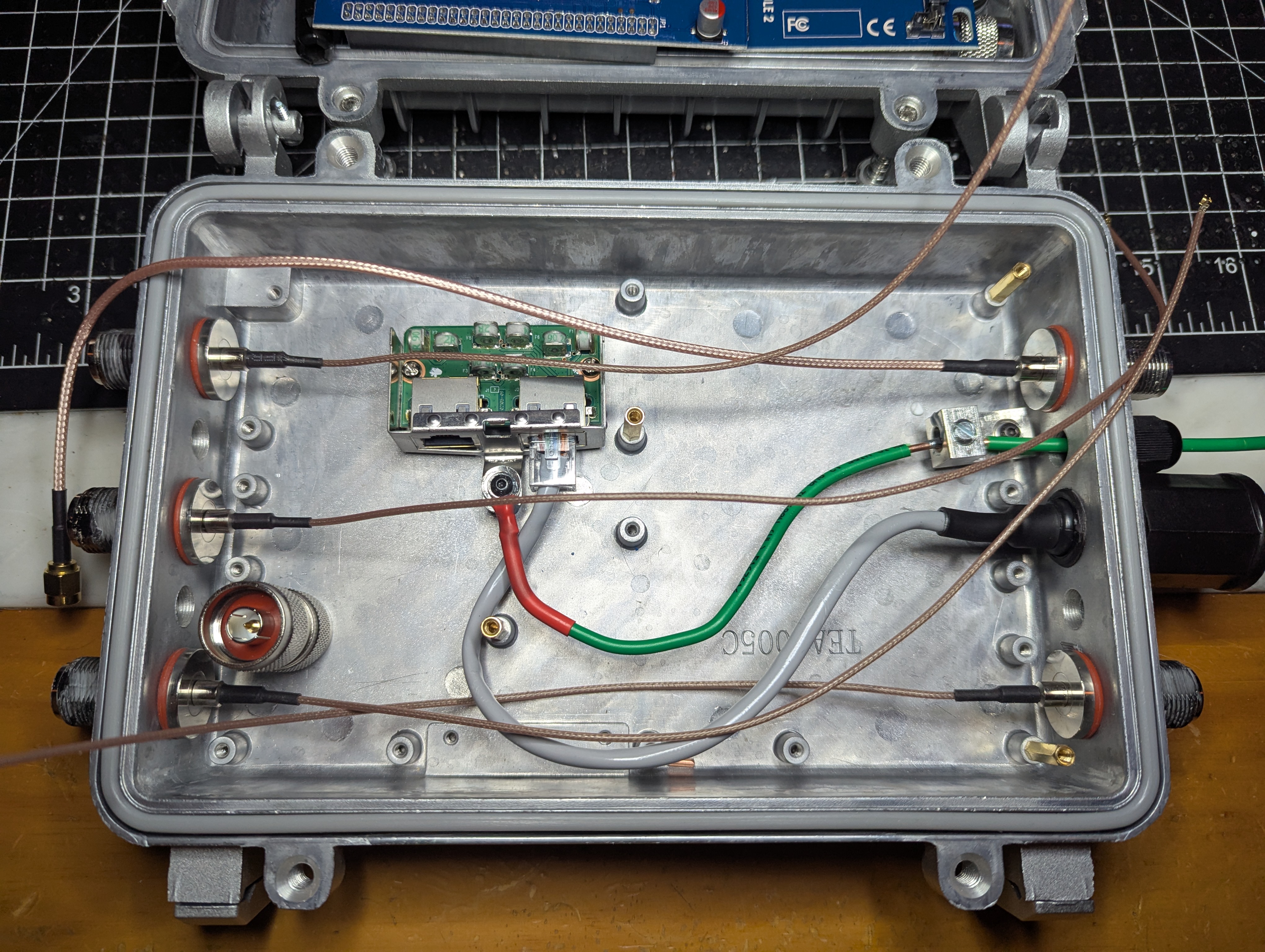
Grounding is critical on a tower, especially one with other RF equipment. Strip out the USB, Pi and main boards, then shuck a $12 Ubiquiti ETH-SP-G2 surge protector by prying it out of its housing with a multi-tool (bending the housing is fine). It won't stop a lightning strike. It keeps the Ethernet pins within 90–100 V of the enclosure ground and absorbs surges and transients. It sits a little high, so screw it to a post with an M3 pan head screw and washer, tap it down with a cheap flathead screwdriver used as a chisel, and cover it with silicone tape so it can't short against the system board.
- Use 12 AWG solid ground wire crimped (not soldered) to a ring terminal. Ask the tower owner if they need a heavier gauge.
- Run the case ground wire through an M10 port and gland, which fits 12 AWG well. One wire connects the internal ETH-SP-G2 and the case grounding lug, with a tail long enough to connect.
- Put a second, cased ETH-SP-G2 at the ground rod or common tower ground, so both ends are protected.
- Put a lightning arrestor between the 915 MHz antenna and the N bulkhead, and crimp on its ground cable with enough slack.
- Join ground wires with split bolts and connect to tower ground with a ground clamp. The goal is a low-impedance path to ground.
- Put Noalox on aluminum connection points to prevent oxidation.
- Wrap threads with Teflon tape. Wrap bulkheads in electrical tape, then silicone tape, then electrical tape again, or use marine heat shrink or butyl tape such as Coax-Seal.
- Fit the EMI rope gasket into the upper lid and trim it to fit.
- The N port threads are rough. Consider chasing them with a 5/8"-24 UNEF RH tap, by hand as far as possible and with a wrench only once it is well seated. A little cutting fluid or machine oil helps but is optional.
Tower mounting struts
Mount the node 1–3 wavelengths (about 13 inches each at 915 MHz) out from the tower. That helps SWR and reduces tower shadow. A longer strut also puts more wind load on the tower, though. The case adds 5–6 inches from its edge to the farthest antenna port, so subtract that.
- Pipe: Casper used 1.25 inch Southland black iron pipe from Lowe's, but 0.75 or 1 inch is fine. Use a wall slightly thicker than 1/8 inch and cut 2 foot sections. 10 foot lengths are cheaper; 6 foot lengths fit in a car.
- End pieces: two 9 inch pieces of 1/8 inch angle steel per strut. Weld two U-bolts on the tower end. On the Nebra end, drill two slightly oversized 9/32 inch holes, 108 mm apart edge to edge and 10 mm from the outside edge. A photocopy of the case taped to the angle makes a good template. After one clean piece, mark the rest with a paint marker. Misdrilled pieces still work on the tower end, so mark them. Test fit everything.
- Assembly: weld the pipe to the inside center of both angles and spray with cold galvanizing. On the tower, use blue Loctite and two nuts per thread. Most towers use 1.5 inch tubing.
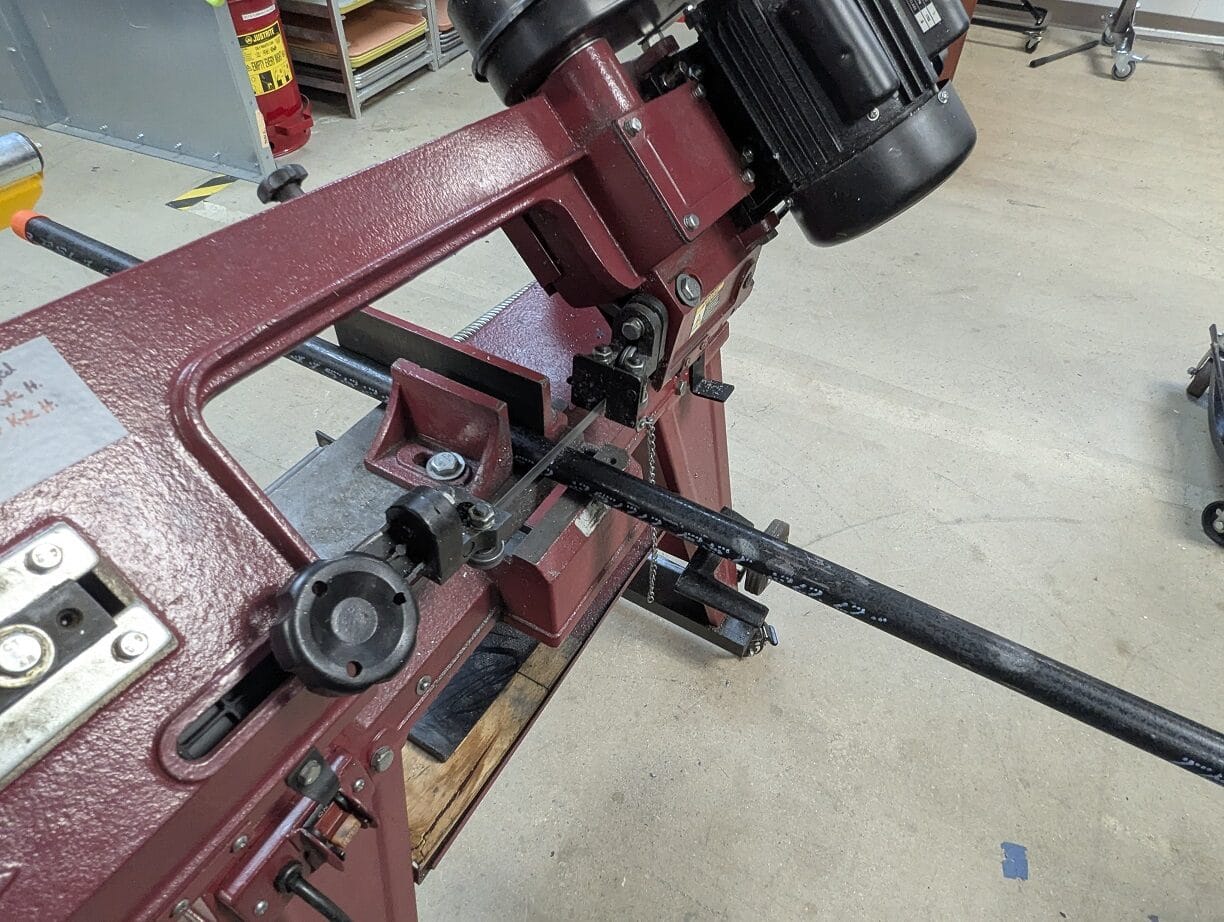
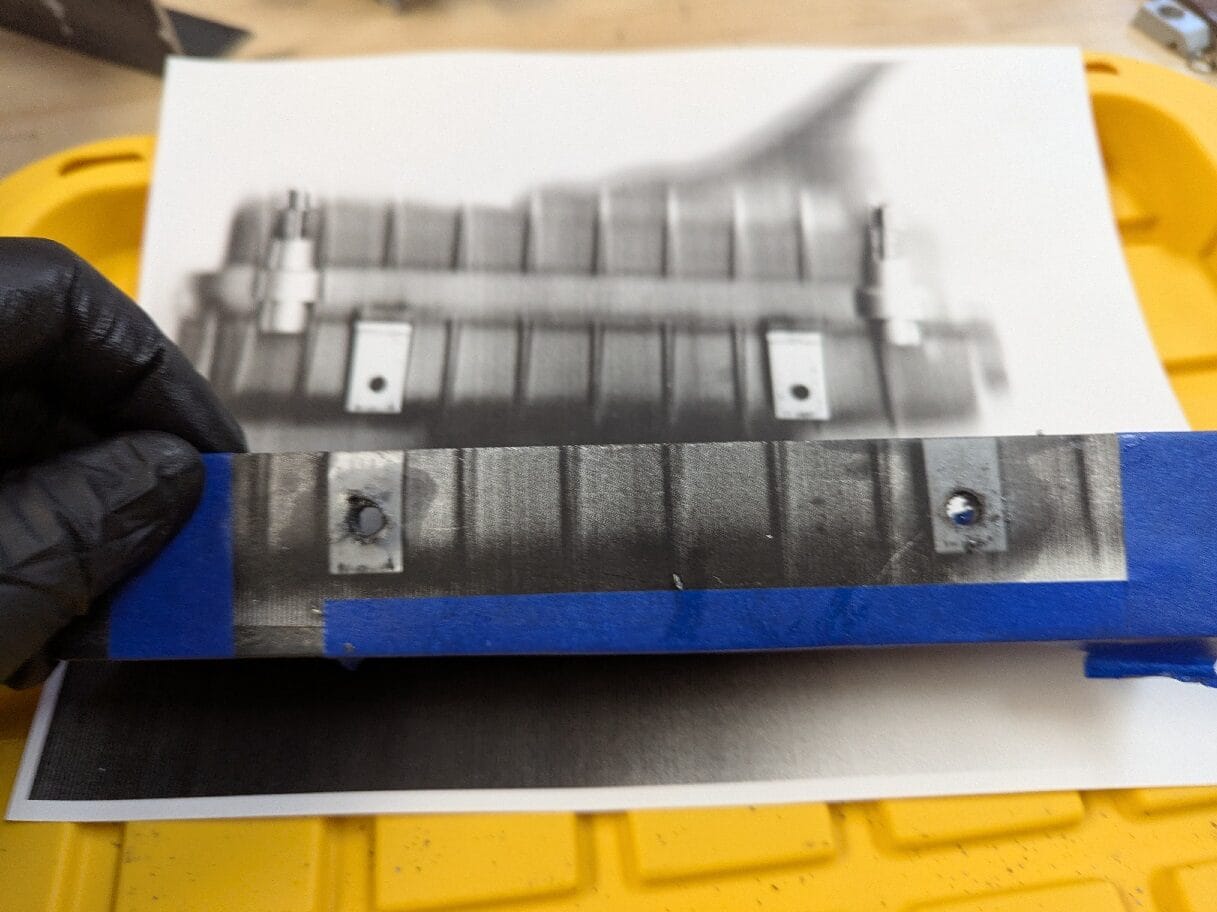
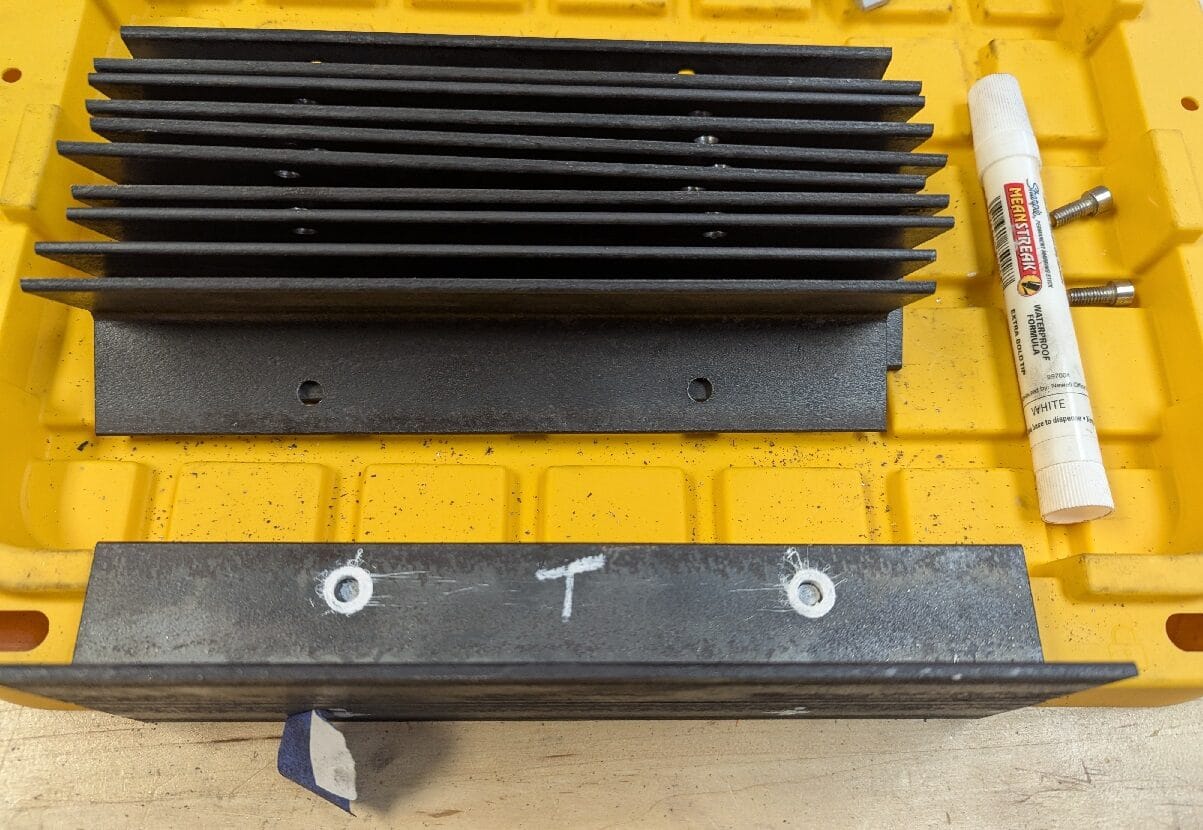
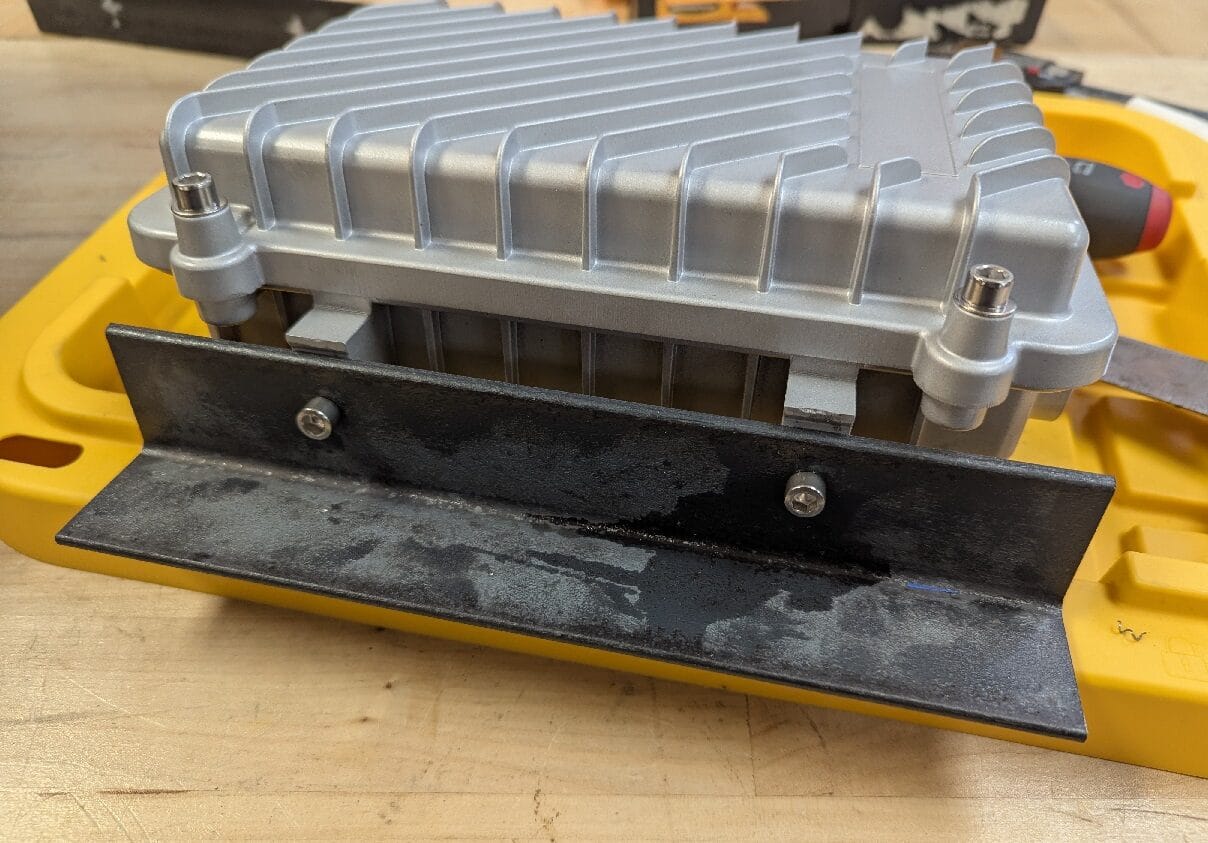
The design went through several rounds of getting stronger, simpler and cheaper. Without a metal shop and welder, this eBay shop sells some of the earlier designs.
| Item | Spec | Length | Cost | Qty | Source |
|---|---|---|---|---|---|
| Angle, mild steel | 1.5 × 1.5 × 1/8 in | 9 in | $2 | 2 | eBay |
| Pipe, mild steel | 1/8 in wall | 10–30 in | $6–16 | 1 | eBay |
| U-bolts or muffler clamps, mild steel | Various sizes | $4–6 | 2 | eBay | |
| Cold galvanizing spray | 20 oz can | $10 | 1 | Amazon |
Power and parts
Measured on the 12 V barrel connector (PoE not yet measured):
| State | Draw |
|---|---|
| Idle | 4.3 W |
| Transmitting | 4.8 W |
| Booting | 8 W |
| meshtasticd plus an SSH session | about 6 W |
| Item | Purpose | Cost | Qty | Needed | Source |
|---|---|---|---|---|---|
| Nebra outdoor miner | Enclosure, antennas, carrier board | $40–60 | 1 | Yes | eBay |
| NebraHat | LoRa radio hat | $30–60 | 1 | Yes | Mountain Mesh |
| Stacking headers | Fit more than one hat | $10 | 1 lot | Optional | Amazon |
| Ground wire | 12 AWG solid, THW PVC | $15 | 1 spool | Yes | Amazon |
| Grounding lug | Rated for aluminum or copper | $2.28 | 1 two-pack | Yes | Home Depot |
| Split bolt | Copper | $5.23 | 1 two-pack | Yes | Home Depot |
| Surge protector | Ubiquiti ETH-SP-G2, gas discharge tubes | $12.50 | 2 | Yes | Ubiquiti |
| N-male to N-male adapter | For an aftermarket antenna | $10 | 1 two-pack | Optional | Amazon |
| Antenna | Upgrade over stock | $50 | 1 | Optional | eBay |
| UGREEN SD reader | Flashing the eMMC key | $8 | 1 | Optional | Amazon |
| Waterproof vent plug | Lets air and moisture out | $3 | 1 | Optional | AliExpress |
| WiFi dongle | Replaces the stock one | $6 | 1 | Optional | AliExpress |
A basic build is about $100 with a well-priced Nebra, a 1 W hat and two surge protectors, or up to $200 with many extras or high-end parts.
Deployment lessons
- Ground test the node on site, and run it on the ground for at least a week before it goes up.
- Bring one or two spares of everything you will need, including a fully working spare node. A direct swap beats troubleshooting on a tower.
- You will lose nuts, bolts and U-bolts. Give your installer a bag of tower hardware, plus extra zip ties.
- Test your cables and PoE injector, and bring several grounding options.
- Pre-program a WiFi network for the site. In a pinch, set your phone's hotspot or your laptop's access point to it.
- Keep Tailscale on your phone. It shows almost immediately when the node comes online, and switching from WiFi to cellular confirms outside access.
- Copy the node's private and admin keys in advance so you can reprogram it remotely through another node.
Alternative: a solar node
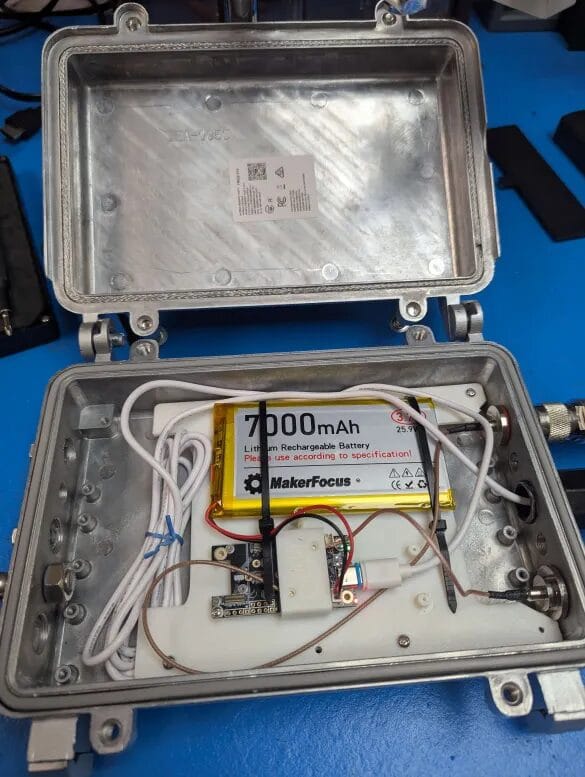
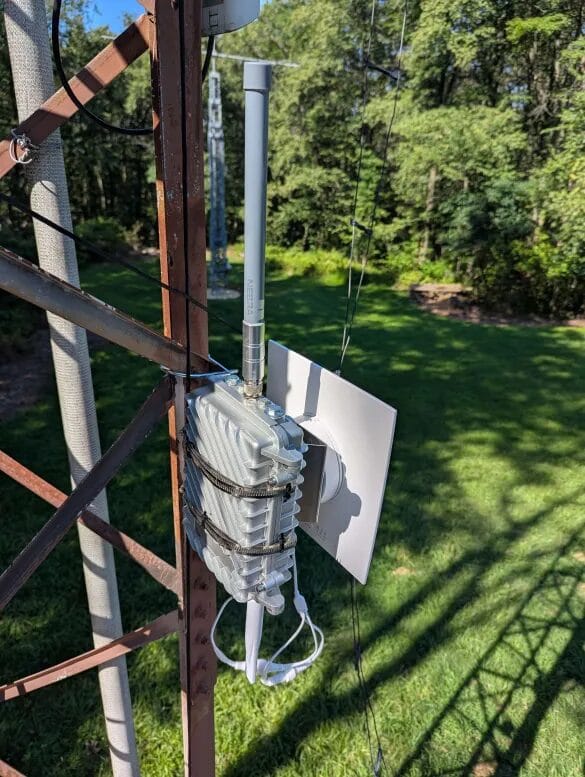
To skip the Pi and the 12 VDC or PoE wiring, use the bare enclosure for a solar node. Mount a RAK WisBlock on a printed mounting plate (PETG is OK, ASA is best) and power it from a 3000 mAh pouch battery or even a single 18650. With only 0.15 W of TX power, keep the IPEX cables to the bulkheads short. Reusing the included bulkheads saves money. A pigtail bracket with #2 screws holds the connectors, and the 2.4 GHz WiFi antenna works fine for the WisBlock's Bluetooth.
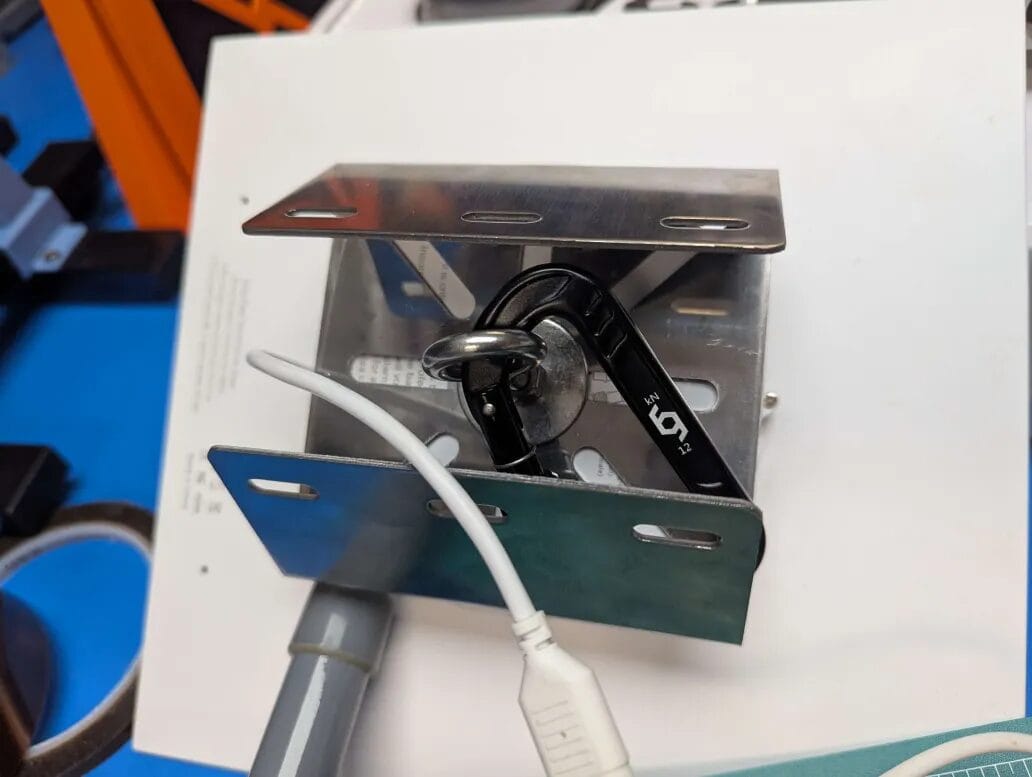
A mounting bracket and a metal hose clamp attach the panel to the enclosure. Casper's panel used a 1/4 inch coarse-thread nut. One hose clamp is the most secure fastener and is enough; trim the slack. Wrap the panel connectors and bulkheads in silicone tape, and use spiral wrap made for air hoses to keep wildlife from chewing the power cable.
Credits and sources
All content and photos come from Casper's posts on casper.im:
- Recycling Old Crypto Miners - Nebra (August 2025)
- Nebra Cell Modem Setup and Config (August 2025)
- Dual Radio Meshtastic Node (December 2025)
Casper's work builds on wehooper4's NebraHat and ZebraHat designs, platfrastructure's multi-instance meshtasticd setup, and the Mountain Mesh community.
Editorial changes. The posts were merged and condensed, and a few commands were corrected. The modem GPS watchdog's flock call is fixed; as originally published, it exited with a usage error before running any checks. -set is now --set in the dual-radio commands. The CLI setup runs after meshtasticd starts. Example names are generic.